new-trail-page
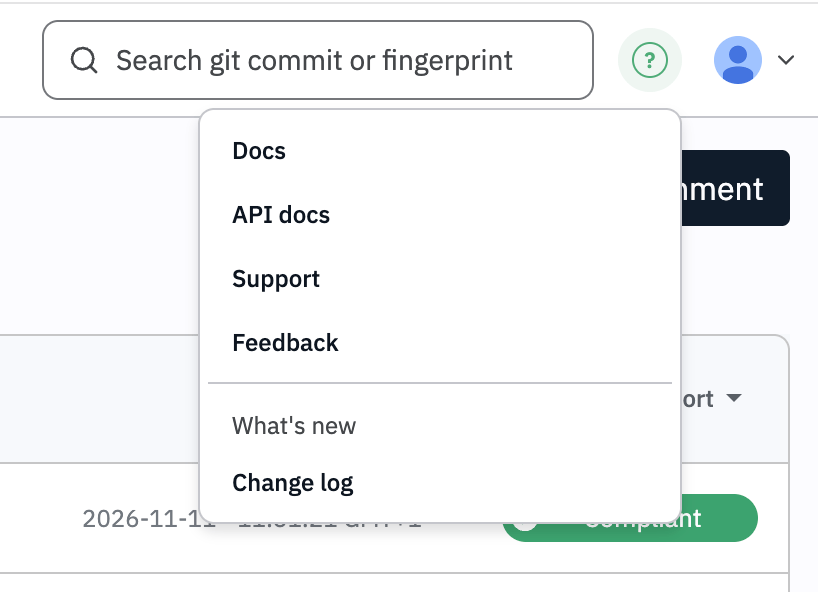
Kosli's trail page now splits into a Status tab and an Events tab, and lets you step back to see a trail at any earlier point in time.
Getting to know Kosli’s new trail page
Kosli’s trail page has a new layout. The old page put the compliance status in a sidebar next to one long timeline of events. On trails with many events, that timeline was slow to load and hard to read, and it was difficult to tell how a trail’s compliance had changed over time.We redesigned the page in response to your feedback. It now puts a trail’s status ahead of its events, stays fast on trails with many events, and shows what was true about a trail at the moment a compliance decision was made.That matters most for environment snapshots, decision attestations and Rego policy evaluations. Kosli records the state of each trail they used, but they could only link to the trail’s current status, which might have changed since.The new page has two tabs: Status, which opens first, and Events. Everything you saw on the old page is still there.You can now see the state of a trail at any specific point in time. Use the Viewing: bar above the tabs to step through earlier moments, and share the page’s link to show others the same moment.
new-navigation
Kosli's sidebar is now grouped into Home, Evidence, Control and Governance, with Settings and the top bar holding the rest.
Finding your way around Kosli’s new navigation
Kosli’s left-hand menu has a new layout. The old flat list of a dozen links is now four groups: Home, Evidence, Control and Governance. Every page you used before is still there. Most are now under a group heading, but a few have moved to Settings or to the top bar.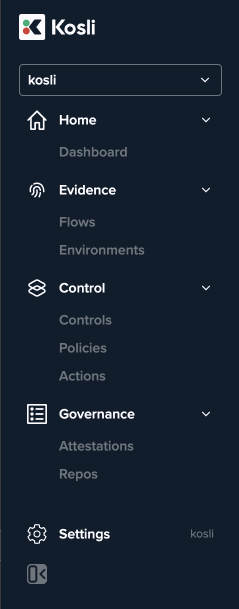
Where each page lives now
The organization switcher still sits at the top of the sidebar. It now has a search box, so you can type a few letters to jump between organizations.
Settings, Spaces and Integrations
Settings is pinned to the bottom of the sidebar, next to the name of the organization you’re in. Click it to open that organization’s settings. Spaces and Integrations now appear in the settings page’s own side menu.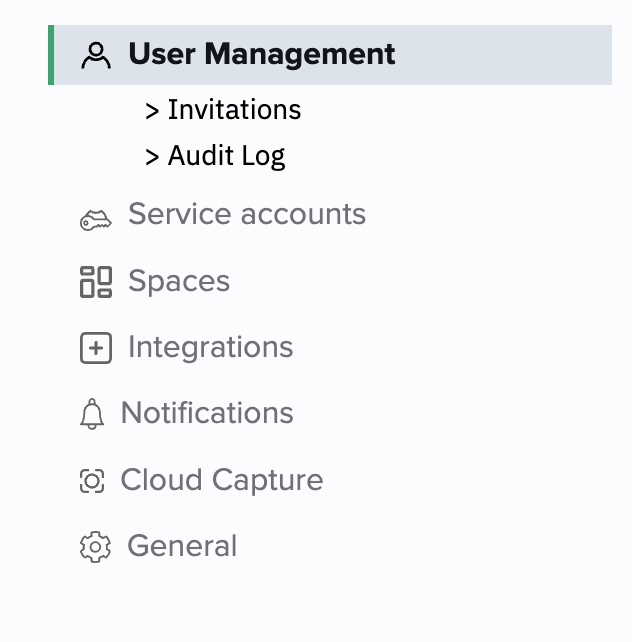
The top bar
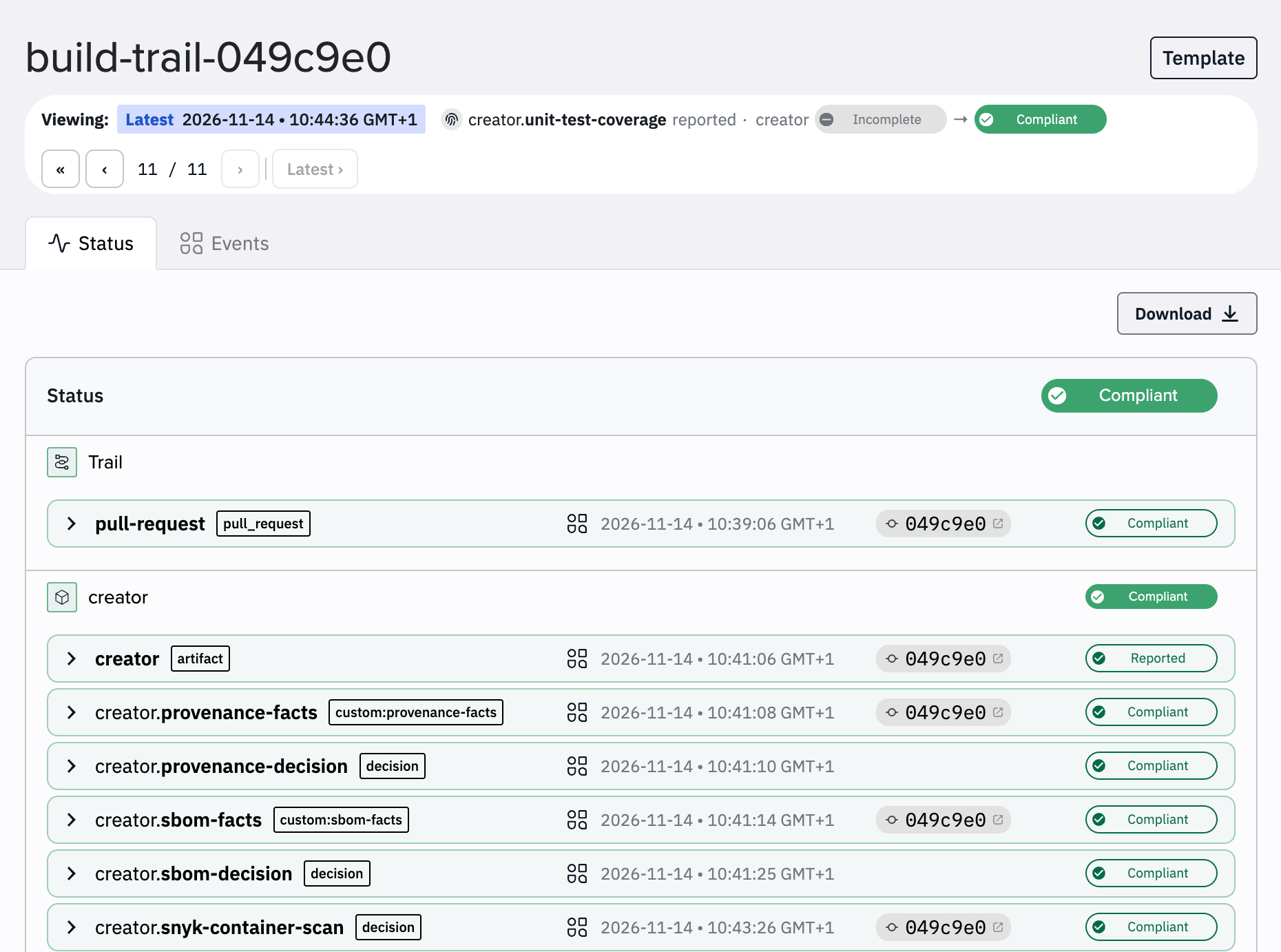
The top bar holds search and two menus.- Support menu (?): links to Docs, API docs, Support and Feedback, and the Change log.
- User menu (your avatar): your name and email, your Profile, and Sign out.