> ## Documentation Index
> Fetch the complete documentation index at: https://docs.kosli.com/llms.txt
> Use this file to discover all available pages before exploring further.
# Lab 2: Flows and Trails
> Create Flows and Trails using the Kosli CLI, and integrate them into your GitHub Actions workflow.
**Prerequisites**: Complete [Lab 1: Get Ready](/labs/lab-01-get-ready) before starting this lab. You should have the Kosli CLI installed and an API key configured.
## Learning goals
* Understand the concepts of Flows and Trails
* Create your first Flow using the CLI
* Begin a Trail manually to track a process execution
* Integrate Flow and Trail creation into your CI/CD workflow
## Introduction
Kosli uses **Flows** and **Trails** to organize and track your software delivery processes:
* A **Flow** represents a repeatable business or software process (like your CI/CD pipeline). It defines what you want to track and what compliance requirements must be met.
* A **Trail** represents a single execution instance of that Flow. For example, each git commit creates a new Trail that tracks all activities for that specific change.
Think of a Flow as the template for your process, and Trails as individual instances that record what actually happened.
## Exercise
```bash theme={"theme":"dracula","languages":{"custom":["/languages/rego.json"]}}
kosli create flow labs-pipeline \
--description "CI/CD pipeline for labs application" \
--use-empty-template
# Verify it was created
kosli get flow labs-pipeline
```
You should see output like:
```
Name: labs-pipeline
Description: CI/CD pipeline for labs application
Visibility: private
Template:
version: 1
Last Deployment At: N/A
Tags: None
```
Visit [app.kosli.com](https://app.kosli.com) and navigate to **Flows** to see your newly created Flow.
The `--use-empty-template` flag creates a Flow without compliance requirements. In Lab 4, you'll add a template with specific attestation requirements.
See [`kosli create flow`](/client_reference/kosli_create_flow) for full flag reference.
A Trail represents one execution of your process. Create one using your latest git commit SHA:
```bash theme={"theme":"dracula","languages":{"custom":["/languages/rego.json"]}}
# Run this inside your copy of the labs repository
kosli begin trail $(git rev-parse HEAD) \
--flow labs-pipeline \
--description "Manual trail for testing"
# Verify it was created
kosli get trail $(git rev-parse HEAD) \
--flow labs-pipeline
```
Make sure you run this inside your copy of the labs repository, not the original.
The Trail name is the git commit SHA, which uniquely identifies this execution and lets Kosli connect all activities (builds, tests, deployments) for that specific commit.
You can use any naming scheme for Trails (commit SHA, PR number, Jira ticket, etc.). Git commits are common because they're unique and tied to your source code.
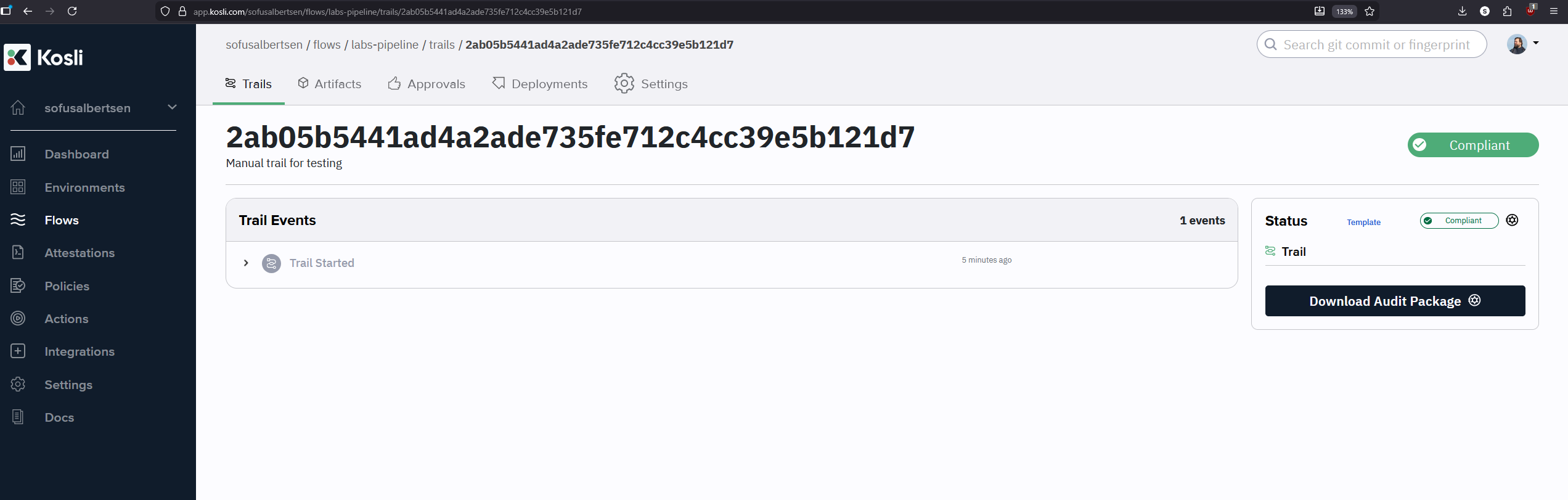 See [`kosli begin trail`](/client_reference/kosli_begin_trail) for full flag reference.
Everything in a Kosli trail is immutable — updates are append-only. This is critical for compliance: if data could be changed, it could be tampered with.
Run `begin trail` again on the same commit with a slightly different description:
```bash theme={"theme":"dracula","languages":{"custom":["/languages/rego.json"]}}
kosli begin trail $(git rev-parse HEAD) \
--flow labs-pipeline \
--description "Manual trail for testing."
```
Now get the trail again:
```bash theme={"theme":"dracula","languages":{"custom":["/languages/rego.json"]}}
kosli get trail $(git rev-parse HEAD) \
--flow labs-pipeline
```
Notice the **Events** section shows both the original `trail started` event and a new `trail updated` event — the history is preserved, not overwritten.
1. In your repository, go to **Settings → Secrets and variables → Actions**
2. Click **New repository secret**, name it `KOSLI_API_TOKEN`, and paste your API key
3. Click **Variables → New repository variable**, name it `KOSLI_ORG`, and enter your GitHub username
Never commit API keys to your repository. Always use GitHub Secrets.
Open `.github/workflows/full-pipeline.yaml` and make the following changes:
**1. Add global environment variables** at the top of the file:
```yaml theme={"theme":"dracula","languages":{"custom":["/languages/rego.json"]}}
env:
KOSLI_API_TOKEN: ${{ secrets.KOSLI_API_TOKEN }}
KOSLI_ORG: ${{ vars.KOSLI_ORG }}
# ... other existing env vars ...
```
**2. Add Kosli steps** just after the `actions/checkout` step:
```yaml theme={"theme":"dracula","languages":{"custom":["/languages/rego.json"]}}
- name: Clone down repository
uses: actions/checkout@v7
- name: Setup Kosli CLI
uses: kosli-dev/setup-cli-action@v5
with:
version: 2.28.0
- name: Create/Update Flow
run: |
kosli create flow ${APP_NAME}-pipeline \
--description "CI/CD pipeline for ${APP_NAME} application" \
--use-empty-template
- name: Begin Trail
run: |
kosli begin trail ${GIT_COMMIT} \
--flow ${APP_NAME}-pipeline \
--description "Build ${BUILD_NUMBER}: ${GIT_BRANCH}"
```
The `kosli-dev/setup-cli-action` installs the CLI in CI. The global `env` variables authenticate all subsequent CLI calls automatically.
```bash theme={"theme":"dracula","languages":{"custom":["/languages/rego.json"]}}
git add .github/workflows/full-pipeline.yaml
git commit -m "Add Kosli Flow and Trail steps"
git push origin main
```
In GitHub Actions, watch the workflow run and confirm the **Setup Kosli CLI**, **Create/Update Flow**, and **Begin Trail** steps complete successfully.
Then visit [app.kosli.com](https://app.kosli.com) → your Flow → you should see a new Trail corresponding to your commit.
## Verification checklist
* [ ] `KOSLI_API_TOKEN` and `KOSLI_ORG` added to GitHub Secrets/Variables
* [ ] Flow created manually via CLI
* [ ] Trail created manually using a git commit SHA
* [ ] Workflow updated with Kosli steps and runs successfully
* [ ] Flow and Trails visible in the Kosli web interface
If anything didn't go to plan, refer to the reference solution at `pipelines/02-complete.yaml` in the [labs repository](https://github.com/kosli-dev/labs).
## Next steps
Continue to [Lab 3: Build Controls](/labs/lab-03-build-controls) to attest artifacts and attach evidence to your Trails.
**Further reading:**
* [Flows](/getting_started/flows)
* [Trails](/getting_started/trails)
See [`kosli begin trail`](/client_reference/kosli_begin_trail) for full flag reference.
Everything in a Kosli trail is immutable — updates are append-only. This is critical for compliance: if data could be changed, it could be tampered with.
Run `begin trail` again on the same commit with a slightly different description:
```bash theme={"theme":"dracula","languages":{"custom":["/languages/rego.json"]}}
kosli begin trail $(git rev-parse HEAD) \
--flow labs-pipeline \
--description "Manual trail for testing."
```
Now get the trail again:
```bash theme={"theme":"dracula","languages":{"custom":["/languages/rego.json"]}}
kosli get trail $(git rev-parse HEAD) \
--flow labs-pipeline
```
Notice the **Events** section shows both the original `trail started` event and a new `trail updated` event — the history is preserved, not overwritten.
1. In your repository, go to **Settings → Secrets and variables → Actions**
2. Click **New repository secret**, name it `KOSLI_API_TOKEN`, and paste your API key
3. Click **Variables → New repository variable**, name it `KOSLI_ORG`, and enter your GitHub username
Never commit API keys to your repository. Always use GitHub Secrets.
Open `.github/workflows/full-pipeline.yaml` and make the following changes:
**1. Add global environment variables** at the top of the file:
```yaml theme={"theme":"dracula","languages":{"custom":["/languages/rego.json"]}}
env:
KOSLI_API_TOKEN: ${{ secrets.KOSLI_API_TOKEN }}
KOSLI_ORG: ${{ vars.KOSLI_ORG }}
# ... other existing env vars ...
```
**2. Add Kosli steps** just after the `actions/checkout` step:
```yaml theme={"theme":"dracula","languages":{"custom":["/languages/rego.json"]}}
- name: Clone down repository
uses: actions/checkout@v7
- name: Setup Kosli CLI
uses: kosli-dev/setup-cli-action@v5
with:
version: 2.28.0
- name: Create/Update Flow
run: |
kosli create flow ${APP_NAME}-pipeline \
--description "CI/CD pipeline for ${APP_NAME} application" \
--use-empty-template
- name: Begin Trail
run: |
kosli begin trail ${GIT_COMMIT} \
--flow ${APP_NAME}-pipeline \
--description "Build ${BUILD_NUMBER}: ${GIT_BRANCH}"
```
The `kosli-dev/setup-cli-action` installs the CLI in CI. The global `env` variables authenticate all subsequent CLI calls automatically.
```bash theme={"theme":"dracula","languages":{"custom":["/languages/rego.json"]}}
git add .github/workflows/full-pipeline.yaml
git commit -m "Add Kosli Flow and Trail steps"
git push origin main
```
In GitHub Actions, watch the workflow run and confirm the **Setup Kosli CLI**, **Create/Update Flow**, and **Begin Trail** steps complete successfully.
Then visit [app.kosli.com](https://app.kosli.com) → your Flow → you should see a new Trail corresponding to your commit.
## Verification checklist
* [ ] `KOSLI_API_TOKEN` and `KOSLI_ORG` added to GitHub Secrets/Variables
* [ ] Flow created manually via CLI
* [ ] Trail created manually using a git commit SHA
* [ ] Workflow updated with Kosli steps and runs successfully
* [ ] Flow and Trails visible in the Kosli web interface
If anything didn't go to plan, refer to the reference solution at `pipelines/02-complete.yaml` in the [labs repository](https://github.com/kosli-dev/labs).
## Next steps
Continue to [Lab 3: Build Controls](/labs/lab-03-build-controls) to attest artifacts and attach evidence to your Trails.
**Further reading:**
* [Flows](/getting_started/flows)
* [Trails](/getting_started/trails)